Objective
Manufacturers can upload 3D STEP models and part data spreadsheets to the Component Search Engine (CSE) SFTP server to support bulk 3D model uploads, automated part data processing, and new product introductions (NPIs).
-
Requesting CSE SFTP server from OPS Procedure
-
How to Add SFTP information into 1Password and Share with Internal and External Users
-
Connecting to the SFTP Server (Using FileZilla)
-
Using the SFTP Server
-
Request & Processing Contacts
Requesting CSE SFTP server from OPS Procedure
- Compose and Submit email to ops@supplyframe.com
- Subject Line <Manufacturer Name> CSE SFTP Request and Provide the contextual body of the request. Example:
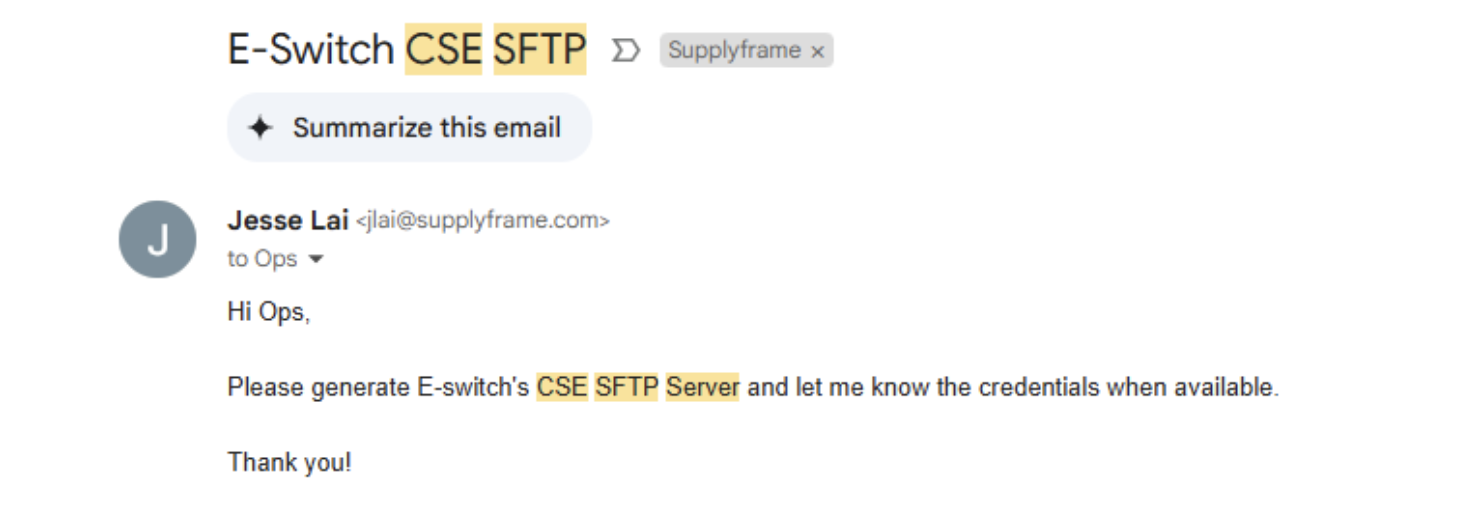
3. After processing, you'll receive a 1Password link with the credentials. Add this to the Employee Vault in your Supplyframe 1Password account.
How to Add SFTP information into 1Password and Share with Internal and External Users.
- Open 1Password client
- Login to the client with your Supplyframe 1Password credentials
- Under the Employee Vault, press Ctrl+N and select 'Login'
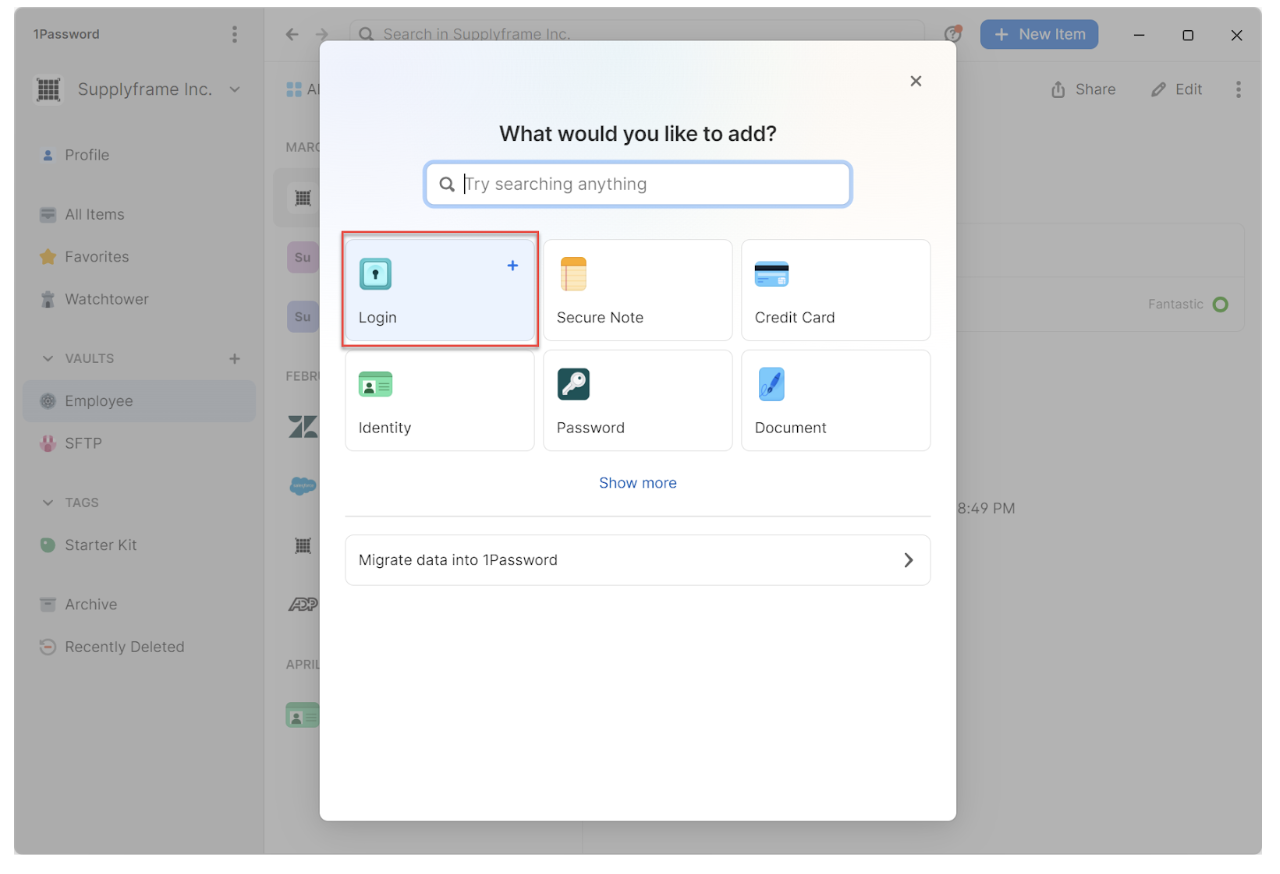
4. Enter and add the match parameters from the shared 1Password link sent from Operations, and then click Save.
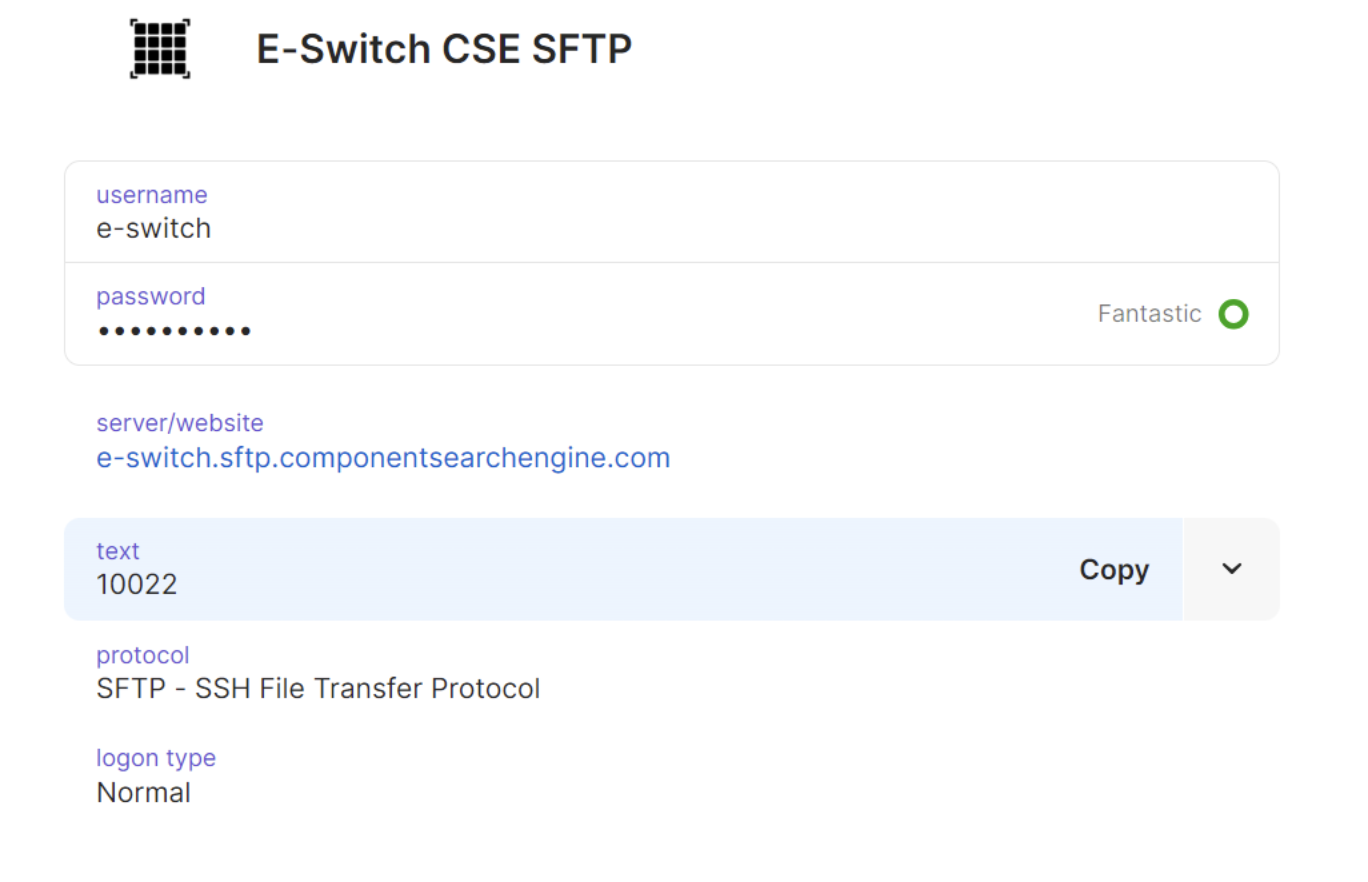
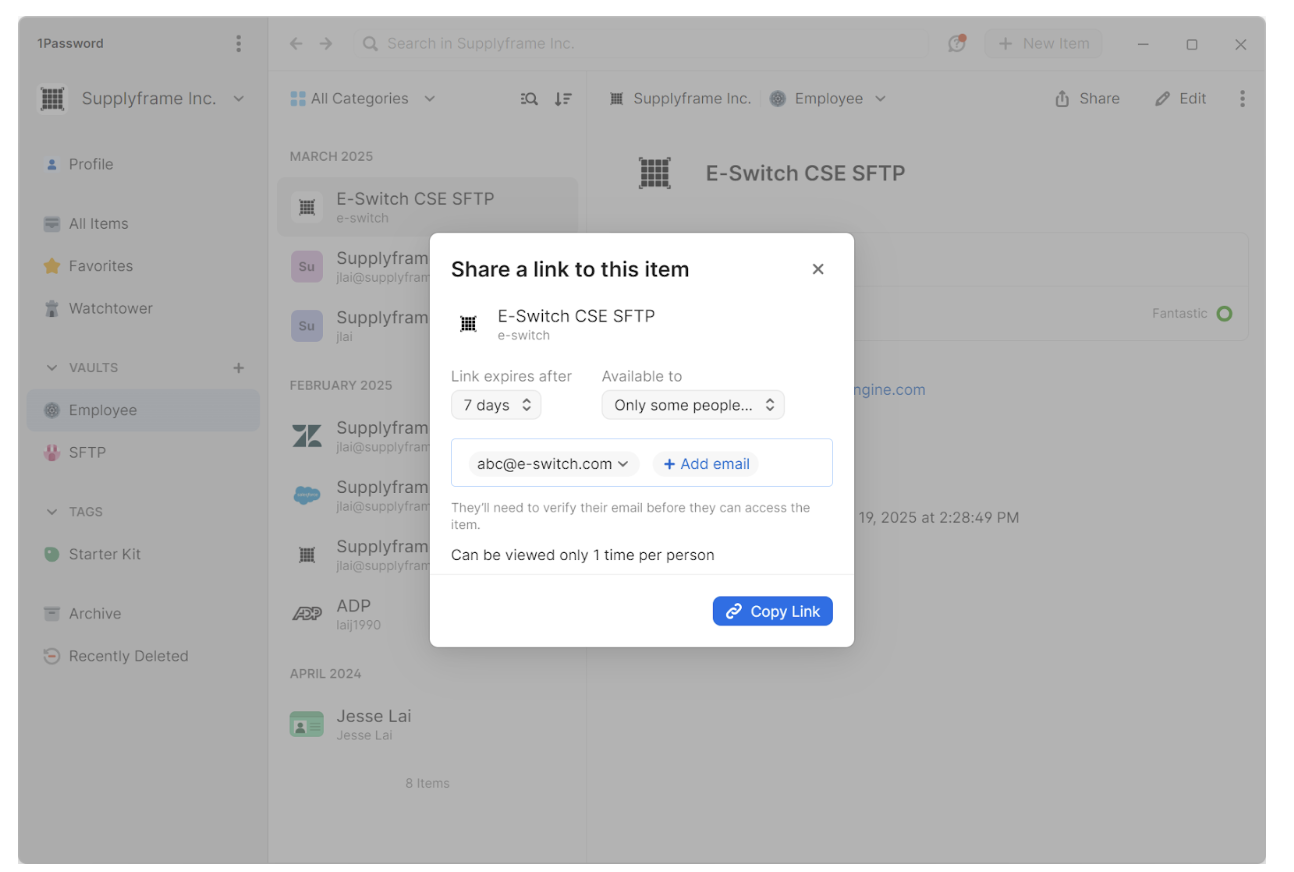
5. The SFTP information will now be visible in the vault and can be shared

6. Set the link to expire in 7 days and restrict access to the manufacturer's designated email. Then, click ‘Copy Link’.
How to Connect to the SFTP Server
FileZilla Setup
File Download: Windows | Mac | Installation Instructions
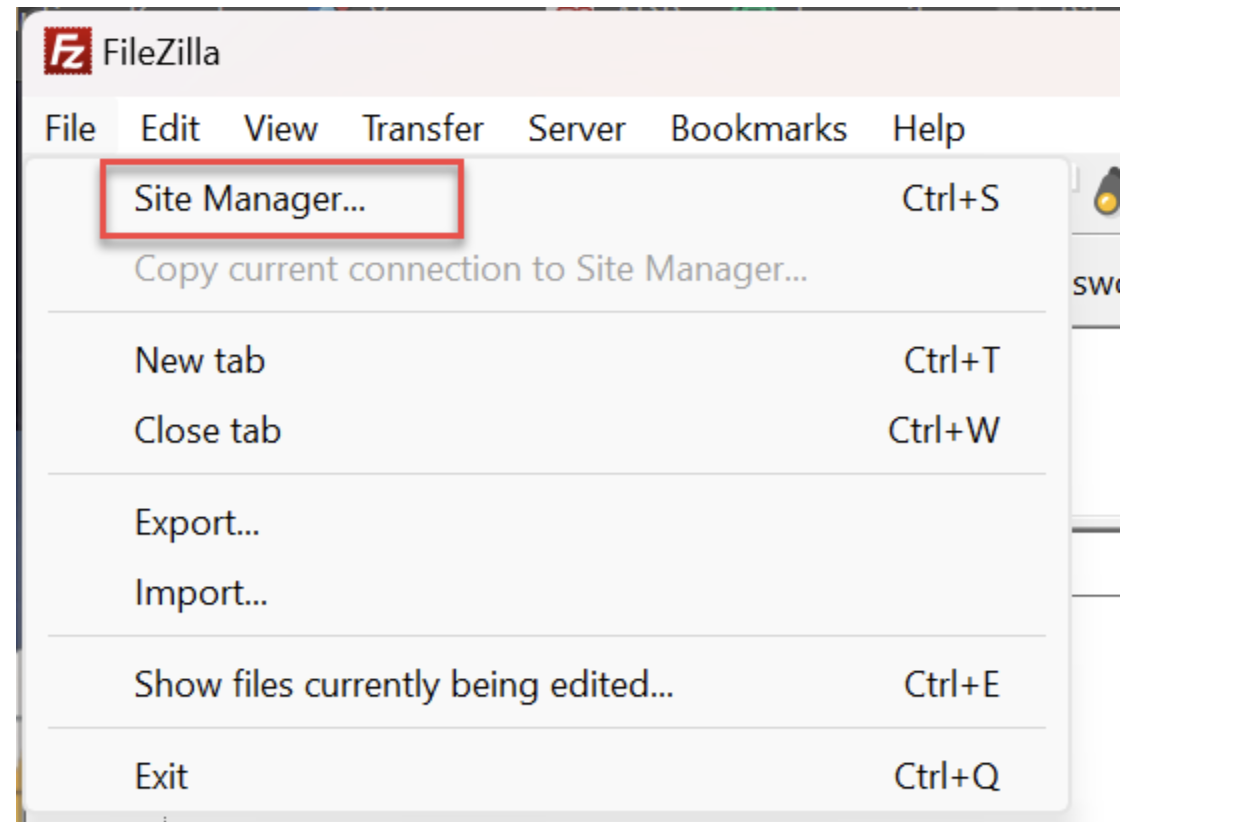
1. Go to File > Site Manager
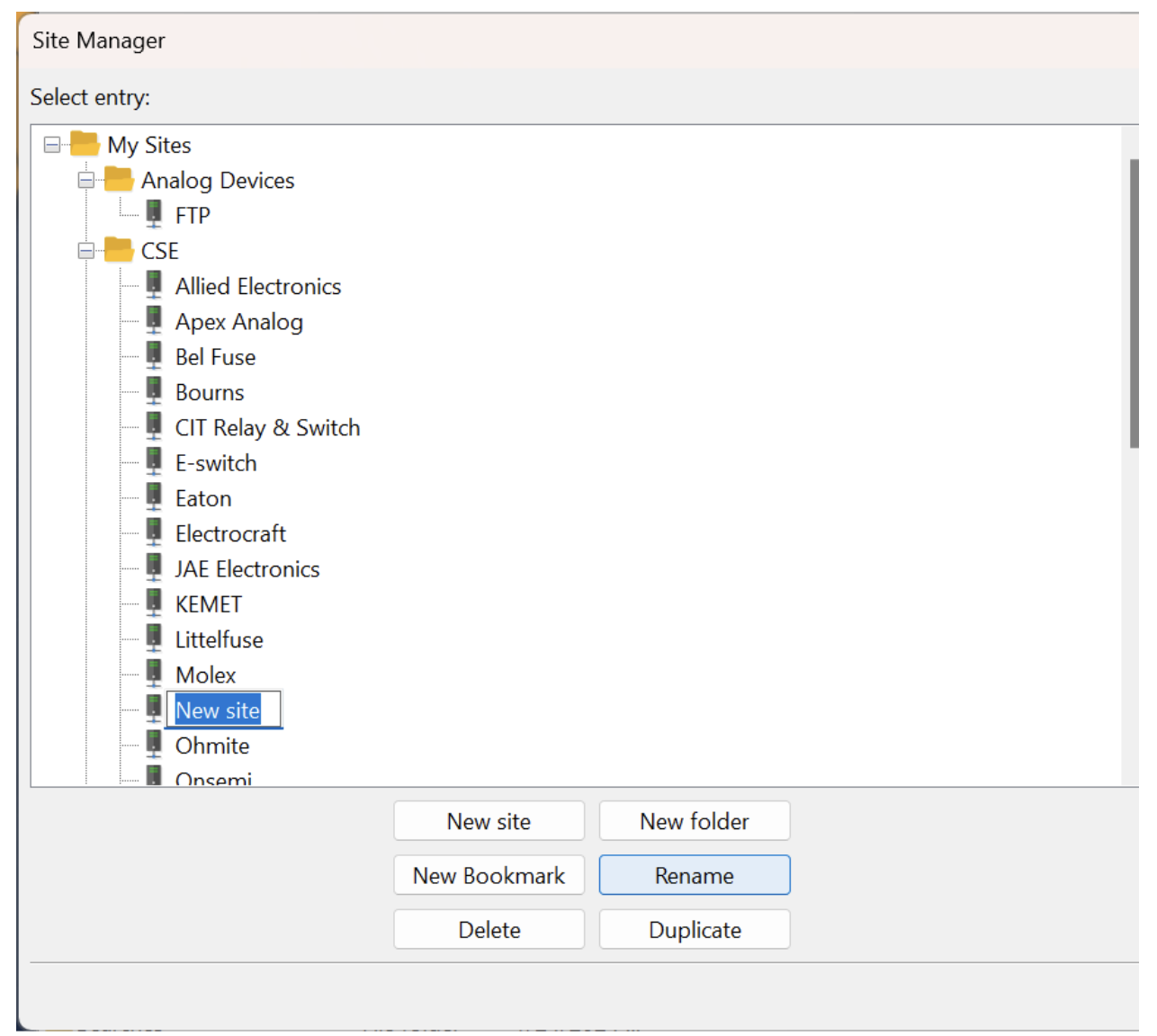
2. Click on 'New Site' and label the CSE SFTP server
3. In the General tab, set the values matching the SFTP located from the 1Password CSE SFTP Vault
- Protocol: SFTP-SSH File Transfer Protocol
- Host
- Port:10022
- Logon Type: Normal
- User
- Password

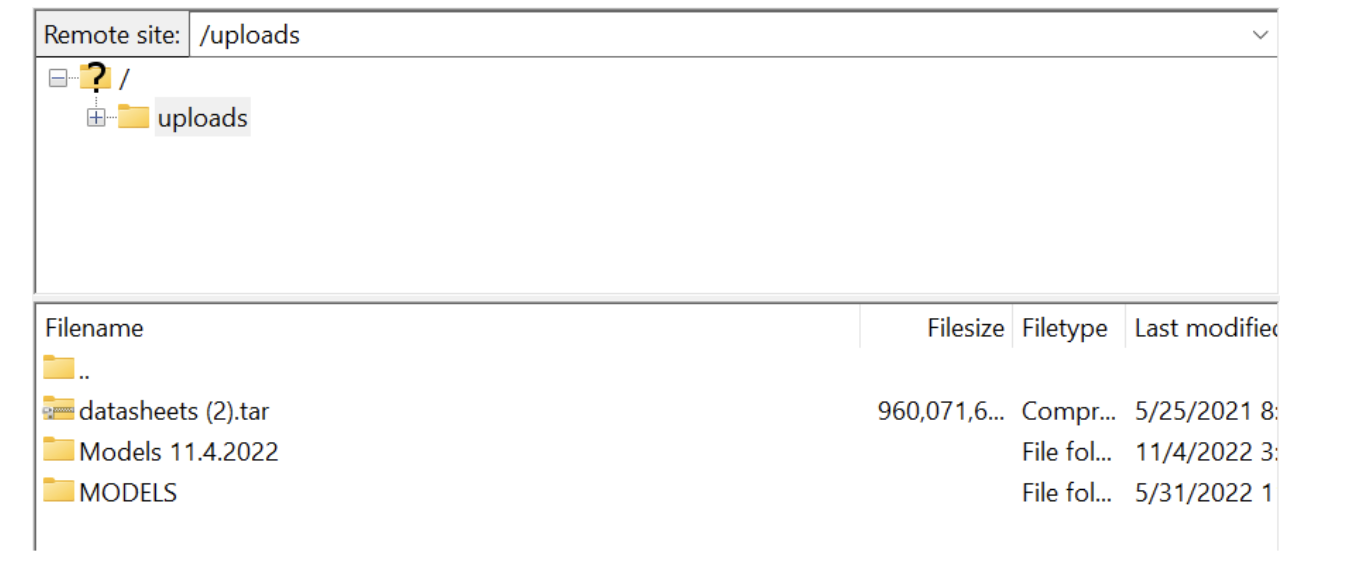
4. After entering the details, click OK to save or Connect to access the SFTP server. You'll be directed to the remote upload site, where you can import and export files as needed.
Steps after Connecting to SFTP Server
Once connected, you can begin file sharing between the sender and recipient. Please keep in mind that only model-related requests can be processed, such as part data uploads into the Component Search Engine database, handling new product releases from uploaded files, and sharing 3D STEP models for upload. For certain clients, automated part data processing has been set up by the developer.
Onsemi Requests:
We have an established process to handle weekly Onsemi Zendesk tickets submitted every Sunday via the Zendesk NPI email. These requests should be processed by Monday, and no later than Tuesday, to ensure the query runs on Wednesday. Reports will then be generated for the content team to process, including NPIs and part data uploads.
- Upload the file to the Onsemi CSE SFTP Server using the filename format "OnsemiPartDataReport MM-DD-YY".
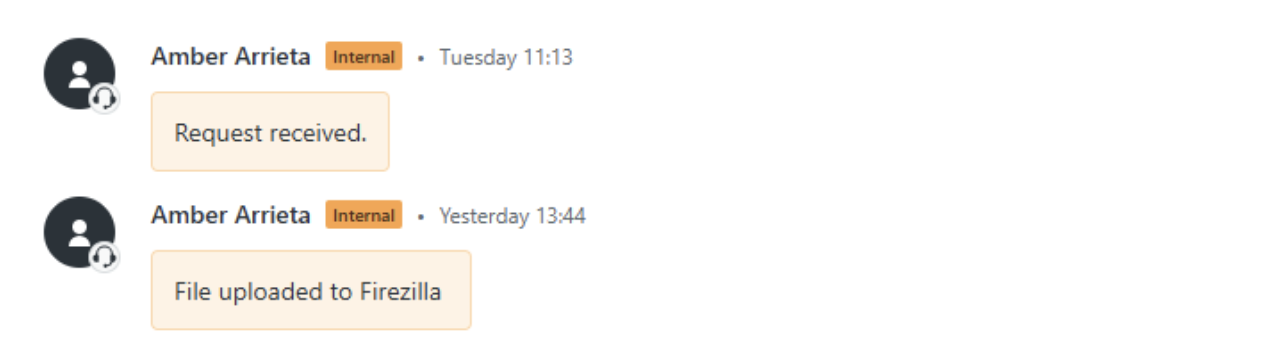
- After uploading and renaming the file, update the Zendesk ticket to confirm the upload.
It is best practice to monitor its progress by checking the internal Insight Portal periodically and checking for a Purchase Order. The querying occurs every Wednesday; if the order doesn’t populate on Thursday, please submit a support ticket to NPI@supplyframe.com to trigger further investigation by the developer.
To keep track, please user internal notes of the steps that have been taken:
Additional Notes
- For 3D Model requests involving transfer of files using the SFTP server, please send a request to NPI@supplyframe.com. Paul Woolford will be handling the requests.
- For Part data processing involving NPIs and part data uploads, please send a request to Ron Ching <rching@supplyframe.com>.